The M-Audio OXYGEN49 piano keys are a bitch to set up first time. Here it is with Abelton Live 12 Lite
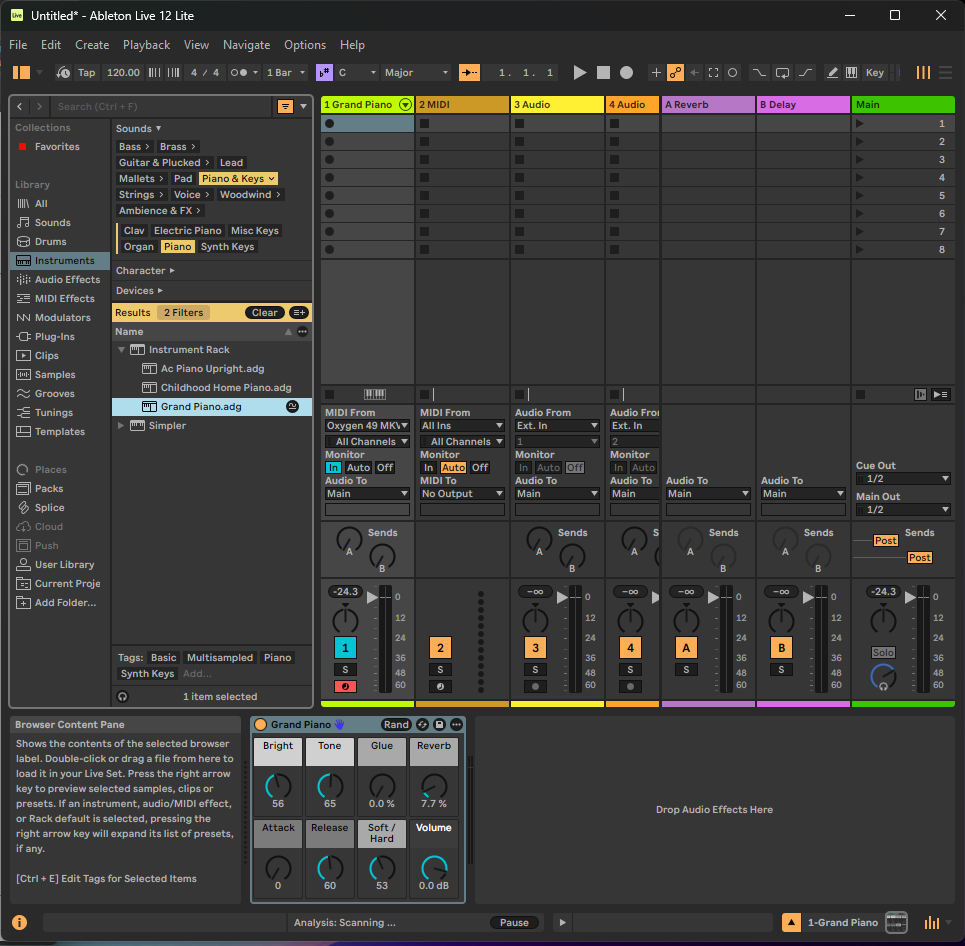
New Live Set, with Track 1 already armed red.
- On Track 1, set MIDI From to Oxygen 49 MKV
- Set Monitor to In
- In the left Library, go to Sounds → Piano & Keys → Piano
- In the results list, load Grand Piano.adg onto Track 1
- On the Oxygen, press Octave + until the notes land in a normal range
- Press the piano keys
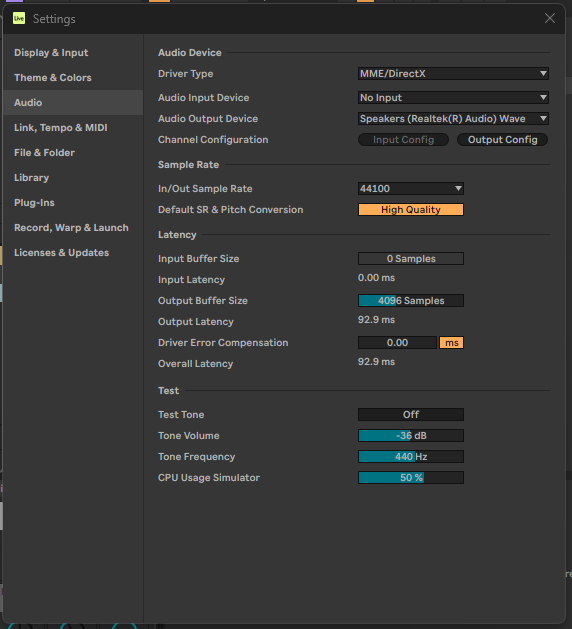
OK. So it's not that tricky. But this install is with MME/DirectX and the Speakers are (Realtek(R) Audio Wave.
Note the test audio is on this page. You click ON for a tone.
ASIO4ALL was installed, but not to a working Abelton config. So maybe try again now that this setup is saved. I am not used to opening Applications with configs that are buried under menus. Not bad once you find your way around.
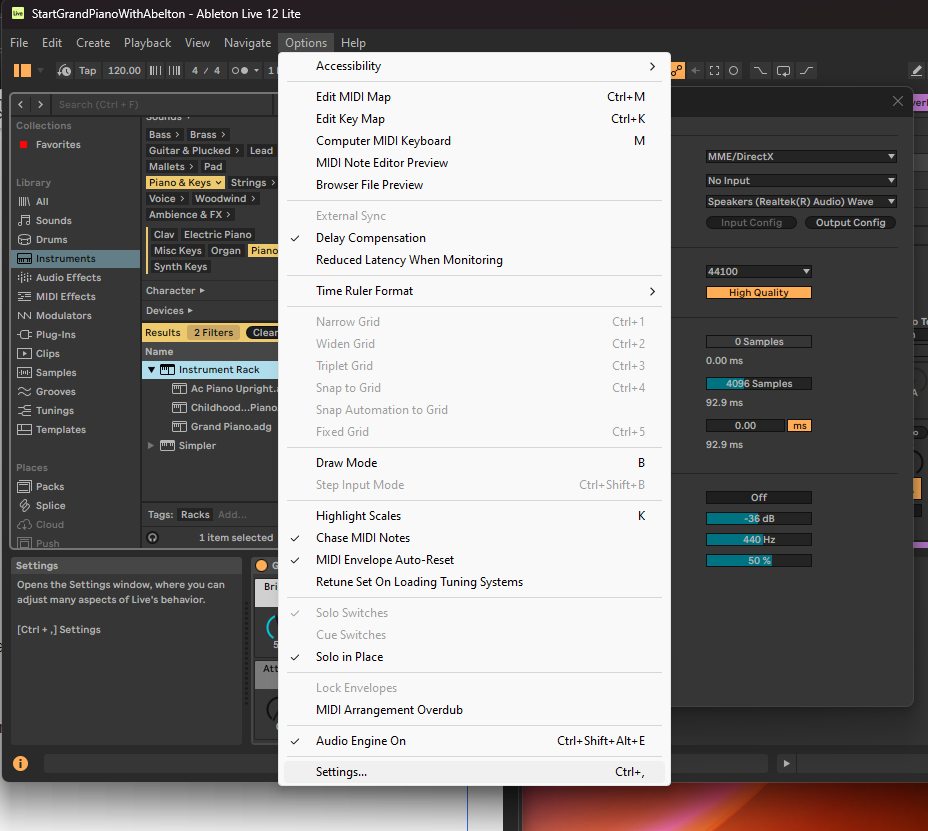
Config? It's under Options / Settings..
Where is volume?

There are three different “volume” spots in this diagram. Let's find them!
1. Track volume
This is the main one for your piano while you play.
- On Track 1 (Grand Piano), look at the vertical fader near the bottom of the track
- In your screenshot, it shows about -24.3 dB
- Drag that up to make the piano louder
That is the practical “make my keyboard louder” control.
2. Instrument volume
Down in the Grand Piano device at the bottom, there is also a knob labeled Volume
- Yours shows 0.0 dB
- That affects the instrument itself
Usually, leave that near default and use the track fader first.
3. Master volume
Far right, on the Main track, there is another vertical fader
- That controls the overall output
- Yours also looks low, around -24.3 dB
If everything is quiet, check both:
- Track 1 volume
- Main volume
Not the one you want
In Options → Settings → Audio, the Tone Volume is only for the test tone, not your piano.
So the fastest answer is:
- Piano louder → raise Track 1 fader
- Everything louder → raise Main fader
- Test beep louder → use Tone Volume in Audio Settings
For a first sane setup, I’d put:
- Track 1 near 0 dB
- Main near 0 dB
- then adjust your Windows speaker volume if needed
Tiny maze, but once you find the faders, Ableton stops hiding the cheese.
-
Press Ctrl + M
-
Single-click the Track 1 volume fader so Ableton selects it for mapping
-
Turn the Track 1 knob on the Oxygen
-
Press Ctrl + M again to leave MIDI map mode
-
Now turn the knob again and the fader should move
Important bit:
-
clicking the fader selects the target
-
turning the hardware knob creates the mapping
Knob detected, but hardware slider was turned way down, so current range is very quiet. Re-test tomorrow with the slider raised.